.png)
This section will give you a good idea of how to set the development environment to send your first API request to Crassula in a few simple steps. We'll be focusing on making a simple GET request using a third-party API platform.
Prerequisites
-
A Crassula client profile: See Persons for more details.
-
A Crassula banking account: See the Accounts section for more detail;
-
An Administrative Panel account: See the Administrative Panel section for more detail;
-
Any third-party API platform: In the example below, we will use the Postman platform.
Setting up the Postman workspace
-
Navigate to the Postman home page, specify your email address, and click Sign Up for Free:
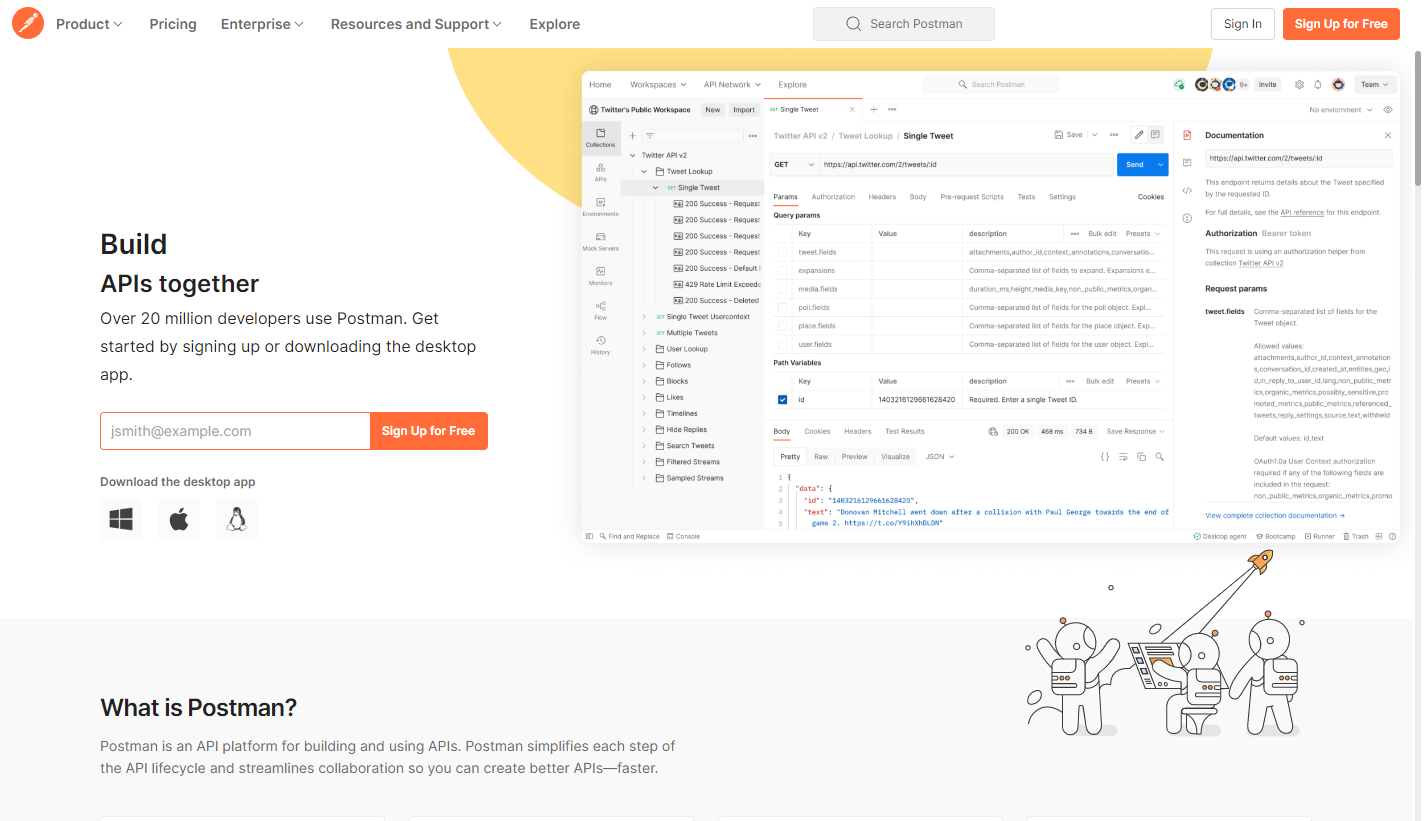
Postman home page -
Create a Postman free account by either specifying a username-password pair or by signing up with your Google account: Accept the End-User License Agreement, specify your name and role, and click Continue to navigate to your Postman workspace:
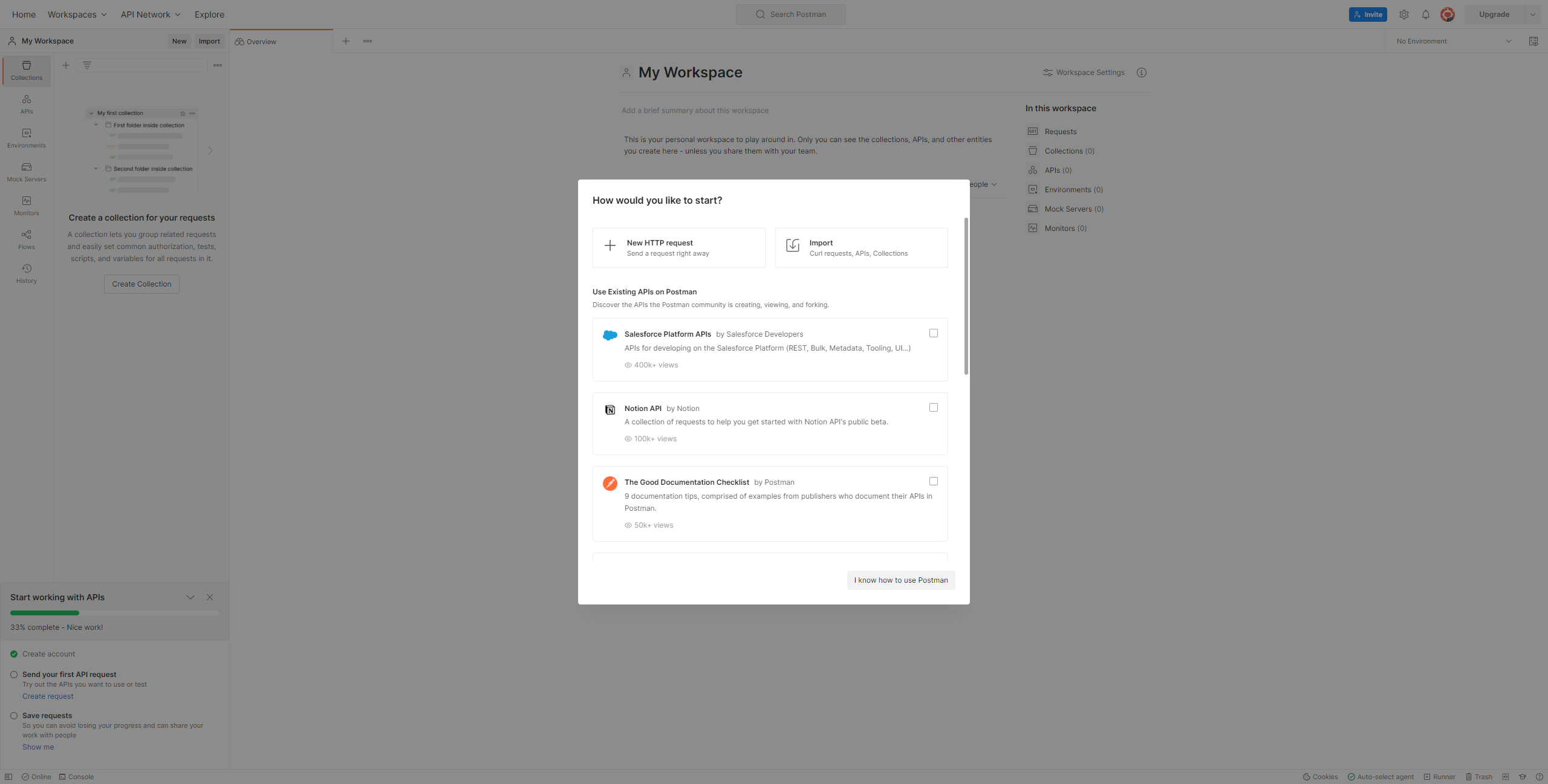
-
In the dialog above, select the New HTTP request option and click Continue to finish the onboarding. Do not close the Postman workspace tab in your browser since you will need to use it later.
Creating an API request
Typically, an API request has the following structure:
https://client.demo.crassu.la/api/clients/{clientId}/accounts
where
-
https://client.demo.crassu.la is a host URL;
-
api/clients/{clientId}/accounts is a request;
-
{clientId} is an internal client identification number defining which client is taken into consideration. You can find the client ID in the Administrative Panel:
-
Navigate to Banking > Persons.
-
Open the required client profile.
-
Copy the value from the ID field.
-
Replace
{clientId}in the request URL with the copied value. For example:
https://client.demo.crassu.la/api/clients/12345/accounts -
Authentication parameters
To authenticate the request, add the API key to the header specified in the Banking API documentation.
When using the API Key authorization type in Postman, you must specify the following fields:
-
Key: The name of the HTTP header that must contain the API key.
-
Value: The API key itself.
Make sure that the API key belongs to the same client whose ID is specified in the request URL.
Key
In Postman, the Key field contains the name of the authentication header required by the endpoint.
For example:
Authorization
The exact header name is defined in the Banking API documentation.
To find it:
-
Navigate to Banking API.
-
Open the required endpoint.
-
Find the API key header parameter in the endpoint description.
-
Copy the parameter name to the Key field in Postman.
About Crassula API keys
An API key is a unique authentication credential generated in the Crassula back end. It allows an external application or service to access the API without using the client’s username, password, or other interactive login credentials.
API keys are primarily intended for server-to-server integrations and other automated processes.
Each API key is associated with a specific Crassula client. Therefore, the client selected when generating the key must match the {clientId} specified in the API request.
API keys and two-factor authentication
API keys are not subject to two-factor authentication by design.
Two-factor authentication is an interactive security mechanism that requires a user to complete an additional verification step during authentication. API keys, however, are intended for automated integrations in which no user is present to provide a one-time code or confirm a login attempt.
The following controls are used instead:
-
Restricted issuance: Only administrators with the required elevated permissions can generate API keys.
-
Verified delivery: The administrator who generates the key manually provides it to the authorized recipient. The recipient’s identity must be confirmed as part of this process.
-
Automation-first purpose: API keys are designed for automated API access. Requiring an interactive two-factor authentication step would prevent unattended services from authenticating successfully.
The absence of two-factor authentication does not make an API key a public or low-security credential. Anyone who obtains a valid key may be able to send requests with the access associated with that key.
API key security recommendations
Follow these recommendations when working with API keys:
-
Treat API keys as confidential credentials.
-
Do not include API keys in publicly accessible source code, documentation, screenshots, issue descriptions, or chat messages.
-
Do not store API keys directly in an application’s source code.
-
Store API keys in a secure secret-management system or protected environment variable.
-
Provide a key only to authorized recipients through an approved secure communication channel.
-
Do not reuse the same key in unrelated integrations when separate keys can be issued.
-
Replace a key if you suspect that it has been exposed.
-
Avoid using production API keys in development or test environments.
Value
The Value field contains the API key generated for the selected client.
To generate an API key:
-
In the Crassula Administrative Panel, navigate to API > API keys.
-
Click Add new.
-
In the Client field, select the client whose ID is specified by
{clientId}in the API request. -
Click Create.
-
Copy the API key displayed in the confirmation message.
Copy and securely store the API key immediately. The complete key value cannot be displayed again after the confirmation message is closed.
Insert the copied API key into the Value field in Postman.
In most cases, the API key must be added to the request header. In Postman, make sure the Add to field is set to Header.
Sending an API request
The following procedure uses the GET /api/clients/{clientId}/accounts endpoint as an example.
To send the request:
-
Open the Banking API documentation.
-
Find the following endpoint:
GET /api/clients/{clientId}/accounts -
Open Postman and create a new HTTP request.
-
Select
GETas the request method. -
Enter the complete request URL:
https://client.demo.crassu.la/api/clients/{clientId}/accounts -
Replace
{clientId}with the client ID from the Administrative Panel. -
Open the Authorization tab.
-
Select API Key from the Auth Type list.
-
Complete the authentication fields:
-
In Key, enter the header parameter name specified in the Banking API documentation, for example
Authorization. -
In Value, enter the API key generated for the client.
-
In Add to, select Header.
-
-
Click Send.
-
Review the HTTP status code and response body returned by the API.
For example, a successful request returns the accounts associated with the specified client. The exact response structure is available in the corresponding endpoint description in the Banking API documentation.
If the request is unsuccessful, verify that:
-
The host URL is correct.
-
The endpoint path and HTTP method are correct.
-
The client ID exists and is specified correctly.
-
The API key was generated for the same client.
-
The authentication header name matches the header specified in the API documentation.
-
The API key was copied without additional spaces or missing characters.
-
The API key has not been exposed or replaced.
.png?cb=2ca2a5d42ccfab76aff38a9147508b13)