.png)
The Web Interface allows users to issue new cards and manage their functionality. Navigate to the Cards tab in the top sidebar to execute the following actions:
Issue a new card
-
Click Order new card.
-
Select whether a new card is to be Plastic or Virtual.
-
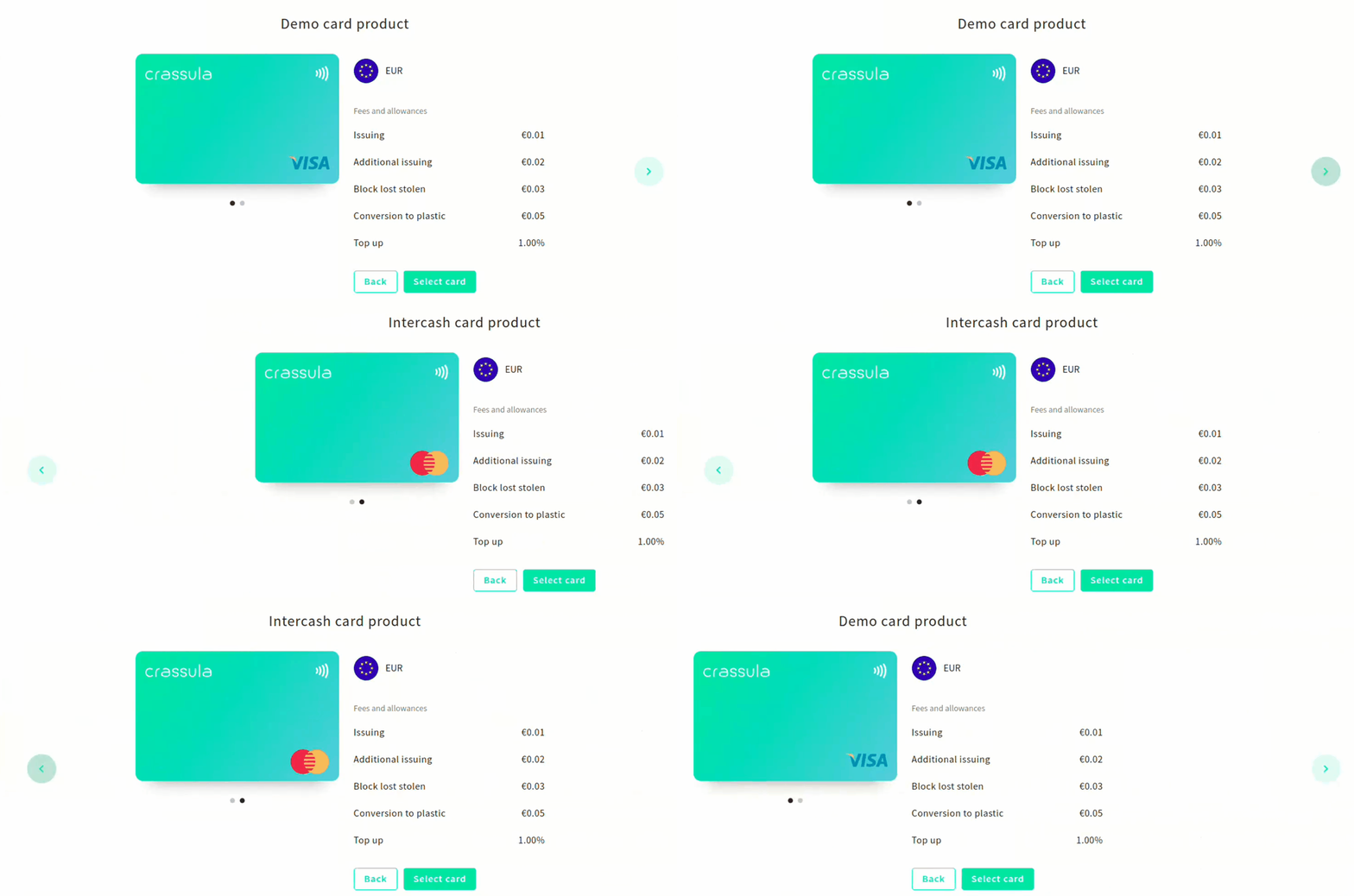
Select a card product to issue. Switch between available options using the left and right arrows.
-
Select an Existing account or open a New account to link the card to.
-
Fill in your personal details and set up a passphrase.
-
Fill in the shipping details (for plastic cards only).
-
Verify the order information and click Continue.
-
Virtual cards will be available on the web interface in a minute.
-
Plastic cards are delivered up <two week’s time>.
The number of Card products per profile can be limited. Contact <White Label> for additional details.
Manage an existing card
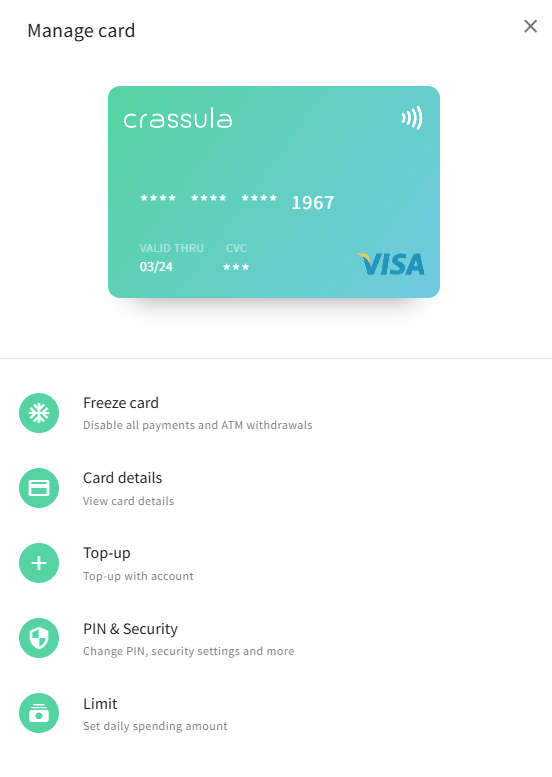
Select a card to configure from the All cards list. The following options are available:
-
Freeze card – the option disables all transactions and withdrawals for the card. Click the tumbler to freeze the card and click once again to unblock it. A blocked card will remain available in the list of cards.
-
View card details (only for virtual cards) – the option provides the full card number and its security code. Use the option to get the card details for online payments.
-
Top-up – transfer funds between own accounts to top up the card account. The functionality supports multicurrency accounts.
-
Convert to plastic (only for virtual cards) – the option issues a plastic card with the same details. Once the plastic card is received, the virtual one will be closed.
-
PIN & Security – the option allows you to switch on/off all internet transactions and see the PIN code of a plastic card.
-
Limit – set a daily limit for all card transactions. Click the tumbler and then Change limit to configure the restrictions.